

FULL UPLOAD
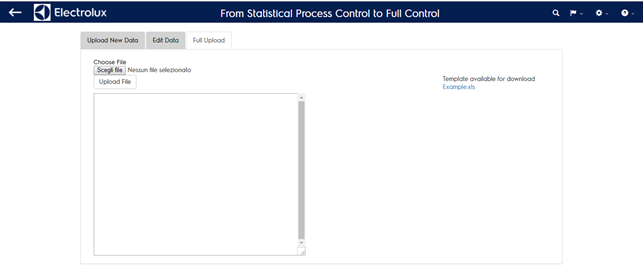
This section is for experts only. Using the full upload you can generate and upload an xml file that allows you to:
- Upload several plants, subdivisions, measures, procedure/revisions at the same time
- Add, change and eliminate rows with a single upload
To use this section you have to know how to generate an xml file wich have to be compliant to the following structure (example):
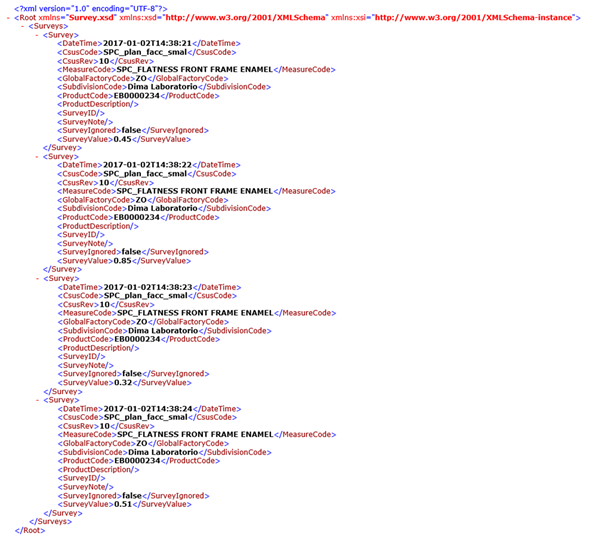
In this example notice that:
- SurveyID is not compiled for any of the 4 surveys, it means that the system is going to add the four rows to the database. To perform a change into an existing row the SurveyID have to be compiled with the internal sample id (see previous section)
- ProductDescription is not compiled (it’s optional)
- SurveyNote is not compiled (it’s optional)
To facilitate this task you can use an excel template you can donwload in the right side of the full upload page (example.xls)
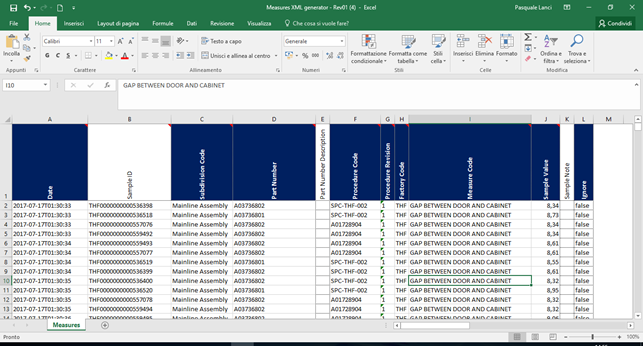
The excel file has the following structure (* means not mandatory fields):
- Date (format yyyy-mm-ddThh:mm:ss)
- Sample ID* (if empty the xml will add rows to the database)
- Subdivision Code (it has to match with existing data)
- Part Number
- Part Number description*
- Procedure Code (it has to match with existing data)
- Procedure Revision (it has to match with existing data)
- Factory Code (it has to match with existing data)
- Measure Code (it has to match with existing data)
- Sample Value (you can use “,” or “.” separator regardless)
- Sample Note*
- Ignore (accepted values: true/false)
Beware to enable macros and changes in the excel configuration in order to be able to use the xml generator procedure.
Once you’ve inserted the data you want to be uploaded click Alt+F8 and run the “CreateXmlMeasures” macro. If the proceure ends successfully a popup reporting the xml file path is shown.
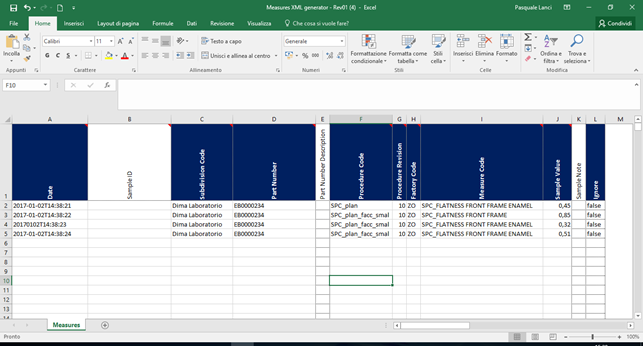
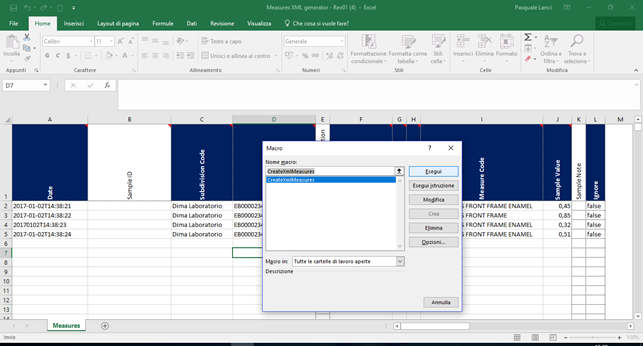
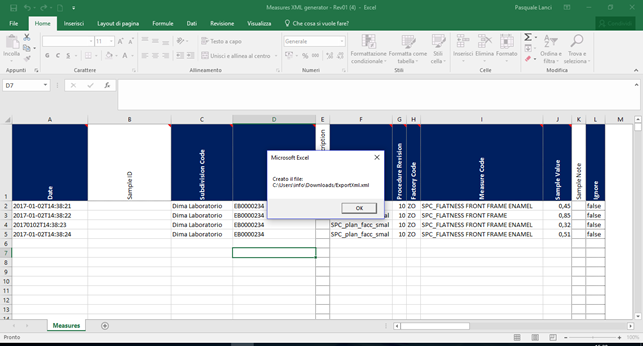
Beware the xml generator procedure does not execute any kind of data validation on content. In the example the xmls file has the following errors that will be moved into the xml file:
- Procedure Code column row 1: procedure code not existing
- Measure Code column row 2: measure code not existing
- Data column row 3: wrong date/time format
Once the xml file is generated you can select it (“Choose File” button) and upload (“Upload File” button) on the system.
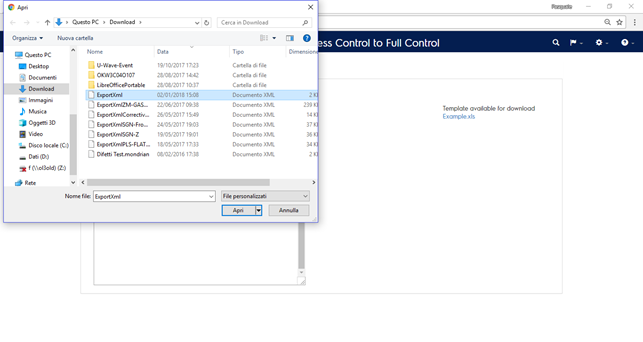
Before uploading xml file the system perform a data validation giving you back error messages. One single error will invalidate the entire upload procedure.
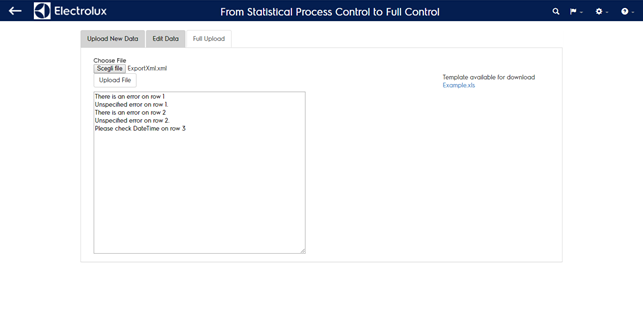
Fix them on the excel file, run again the xml creation procedure and perform again the upload. If everything is fine you will get back an OK.
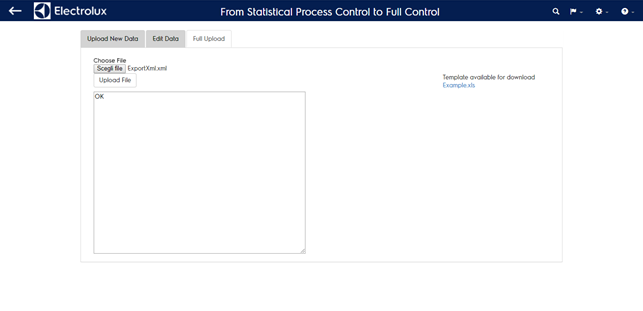
If the file you’re going to upload is big (more than 3-4 MB) the upload procedure could take minutes.