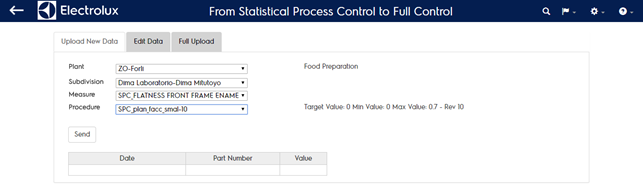
UPLOAD NEW DATA
Using this feature you can upload values related to:
- Existing plant code
- Existing subdivision code
- Existing measure code
- Existing procedure/revision
Consequently, in order to perform correctly the upload, you have to be sure that all those dimensions referred to what you’re going to upload exists before sending any values. If not you have to create those dimensions first and subseauently perform the upload.
Once you’re sure you have mapped everything correctly you can proceed selecting the right plant, subdivision, measure code and procedure/revision. Once you do that you will have available a table to insert values. Unless the table in compiled correctly the “send” button will be disabled.
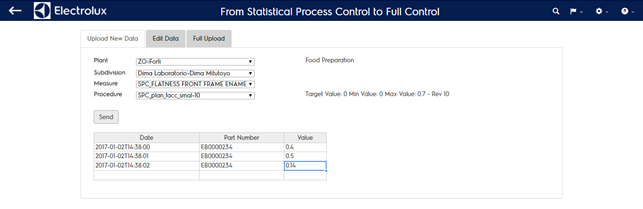
The system performs data validation for columns:
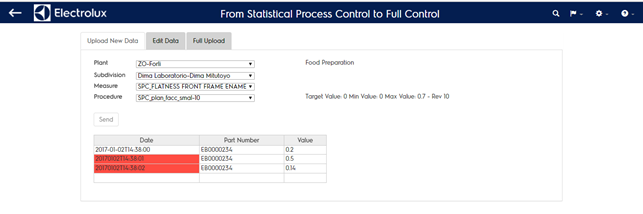
- “Date” appears in red background if the date/time format is not in the right format (yyyy-mm-ddThh:mm:ss)
- “Value” appears in red background if the decimal separator is not “.”. In this case the system changes automatically “,” into “.”. If the list is long this procedure could take minutes to be completed
Is possible to copy paste data coming from a file provided with the same structure (Data | Part number | Value). To paste data copied select the first empty cell on the “Data” column and click Ctrl+V. The table accepts maximum 10000 rows. Once the list has no more red warnings the “Send” button is enabled
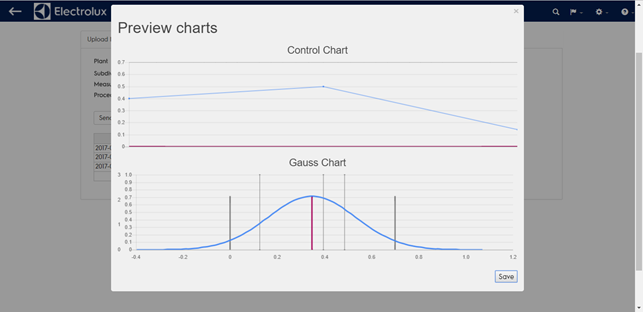
By clicking on it a graphical preview of data that are going to be sent is shown in a popup. To undo click out of the popup, when everything is fine click on “Save” button.
This procedure will add new values every time you performe it, consequently if you perform it twice you will create redundant values on the system. To edit existing data see next section.